What a PNG to PDF conversion is
A PNG to PDF conversion places one picture on a PDF page so you can print it, attach it, or archive it as a document. PNG keeps sharp edges and a transparent background. PDF keeps the page size and the margins. This page reads one image locally, paints any transparent pixel onto white, and writes a normal PDF. Nothing is posted to a server, and the finished file is not stored here.
People use this when a form asks for a PDF but the scan or the export arrived as a single PNG. A screenshot, a diagram, a receipt photo, or one slide all fit. This converter is free, needs no account, and adds no watermark. Open the page, add the image, set the page, and download.
When a single PNG needs to become a PDF
A phone scan of an ID card or a signature page often lands as one PNG. A design export may give you one frame. Many portals refuse an image upload and ask for a PDF attachment instead. Converting here turns that one picture into a file you can attach or print without installing desktop software.
Quality and page size matter more on a single file. Fit image keeps the PDF the same shape as the picture. A4 and Letter put the picture on a paper size and center it. Margins inset the picture. Original quality keeps a flattened PNG inside the PDF. Compressed 0.8 writes a smaller JPEG page when the upload field is strict about size. If the photo was taken in landscape, Auto orientation follows that shape; Portrait and Landscape force the paper when a form expects a fixed layout.
A single conversion is also the right path when you only need one page in the result. There is no page list to reorder and no tiling control, because those belong to a merge job. Keep this tab when the task is one image, one page, and a clear choice of size and quality.
How to convert one PNG to PDF
- Click Choose a PNG, drop one file on the panel, or paste a copied picture with Ctrl+V or Command+V.
- Rotate the preview if the picture is sideways, or replace it with another file.
- Pick the page size, orientation, margin, and quality.
- Click Convert to PDF. The file is named with the date and minute, and the save dialog opens immediately.
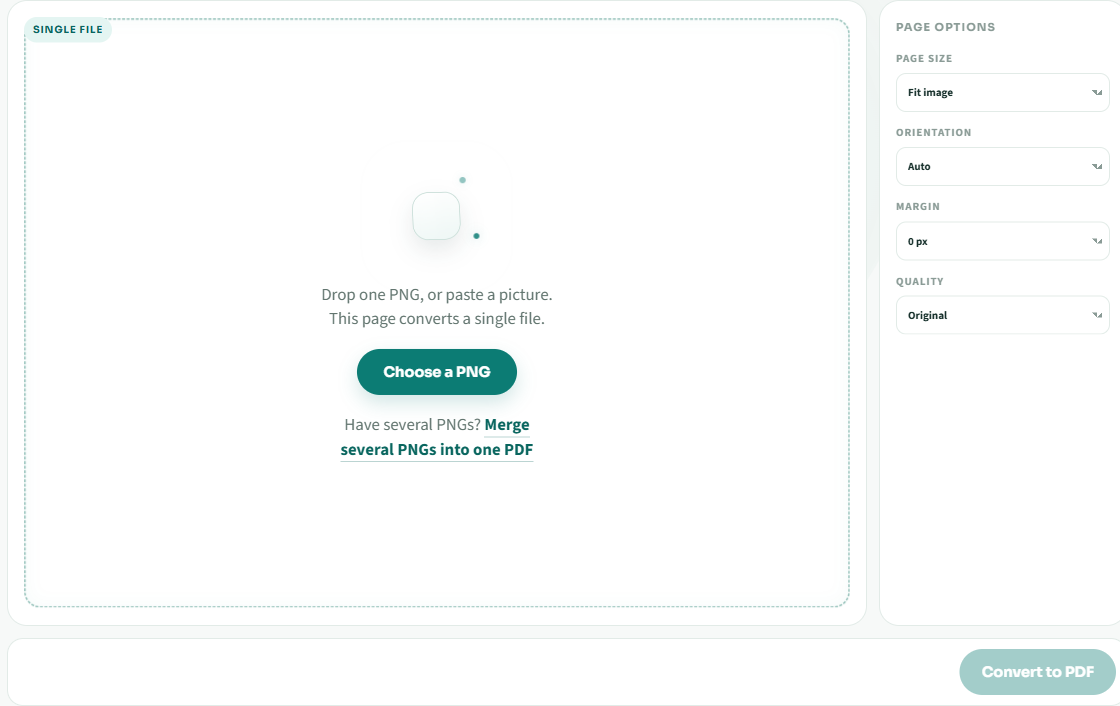
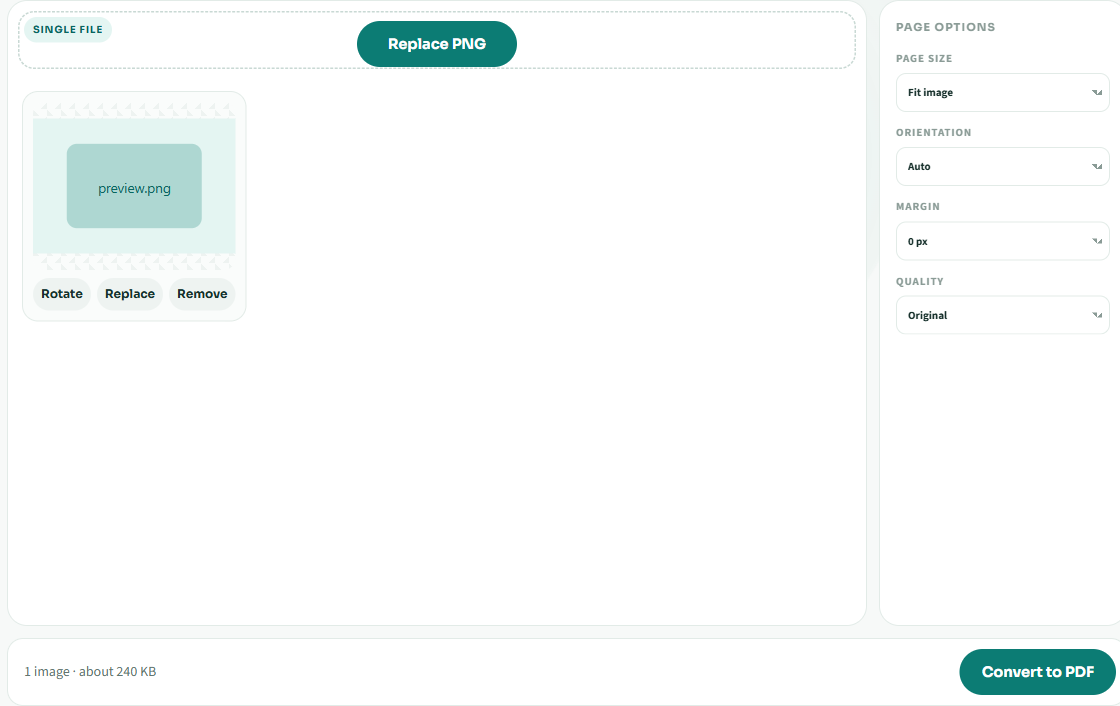
Fit image makes the page match the picture. A4 and Letter put the picture on a paper size and center it. Auto orientation follows the picture. Portrait and landscape force the paper. Margins are 0, 10, 20, or 40 pixels. There is no multi-image layout on this page because one file fills one page.
Using the converter on a phone
On a phone, tap Choose a PNG and pick one photo, or long-press a picture elsewhere and paste it into the page. When the PDF is ready, the download opens the system share sheet so you can save the file or send it in mail. Landscape or portrait pages keep the orientation you set. If the first pick is wrong, use Replace and choose again without leaving the page. The tool still runs in the browser tab; nothing is uploaded for processing.
Large phone photos are fine up to 50 MB. Past that limit, export a smaller copy from the camera roll and try again. HEIC from recent iPhones is accepted; the page converts it locally before writing the PDF. After the first visit, you can convert while offline as long as the tab stays open.
Need several PNGs in one PDF?
This homepage is for one file: how a PNG becomes a PDF, and how size, margin, and quality should look on that page. When you already have a stack of separate PNGs and need them ordered into one document, open merge several PNGs into one PDF. That page is for sorting, multi-select, and optional tiling. Stay here when the job is a single conversion.
How this differs from an upload converter
Many online converters accept the file on a server, wait in a queue, and delete the result about an hour later. That design adds a wait, a privacy question, and an expiry time. This page skips those three. After the page itself has loaded, you can disconnect and still convert one image.
A damaged file, an oversized photo, low memory, or an SVG with an outside link each get one plain sentence. Transparent pixels are painted white before they enter the PDF so a logo or screenshot with transparency stays readable on paper. If you needed the transparency itself, keep the PNG. A PDF page has a background.
Common questions
Are my PNG files uploaded?
No. The browser reads the image and writes the PDF on your device. The picture is not sent to png2pdfs and is not kept after you close the tab.
Is the PNG to PDF converter free, and is there a watermark?
Yes. There is no charge, no watermark, no trial stamp, and no signup. The finished PDF is yours to keep.
Can I convert several PNGs here?
No. This page is for one image. To combine a stack, open Merge PNG to PDF, where you can reorder pages and optionally place several images on one sheet.
What happens to a transparent background?
Transparent pixels are filled with white before the PDF is written. That avoids a black page in readers that mishandle PNG alpha.
Can I use it offline?
After this page has loaded, conversion does not need the network. The first visit downloads the page. HEIC support is fetched only if you add a HEIC file while online.
Which formats are accepted?
PNG, JPG, JPEG, WebP, AVIF, BMP, SVG, and HEIC. An SVG that links to an outside image is refused, and the download explains why.
Why is there no processing bar?
The PDF is created locally when you click Convert to PDF. There is no server job to poll, so there is no progress queue.
Does it work on a phone?
Yes. Use Choose a PNG or paste a picture. The download uses the phone share sheet.